Make Yer Profile a Pirate’s Page You Landlubber
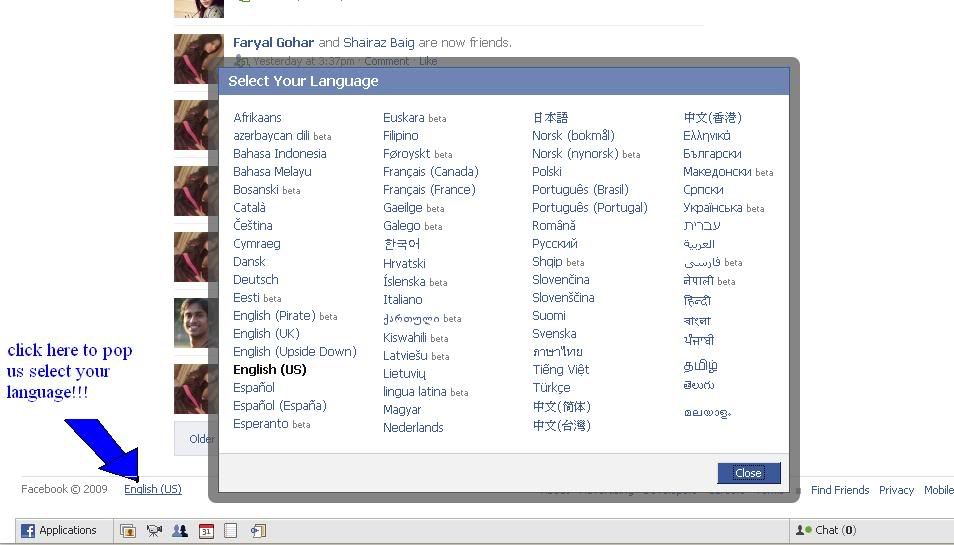
The second profile hack is also one of the easiest to implement. Facebook offers users the ability to transform their Facebook pages into any language that they like. If you scroll down to the lower left corner of your profile page, you’ll see your current language setting. Click on this, and you’ll have a list of all languages available to you. Notice the English Pirate option?
?
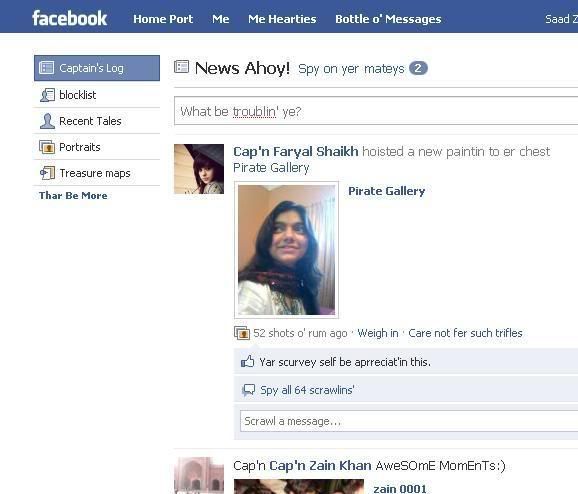
Now as you go through your profile page you’ll notice some pretty hilarious pirate variations.
wall is the Plank, your profile is the Cap’n’s Log, and you can now either click a post as pleasin’ to me eye (like) or blabber t’yer mates (comment). It certainly removes the “boring” factor from your old standard Facebook pages.
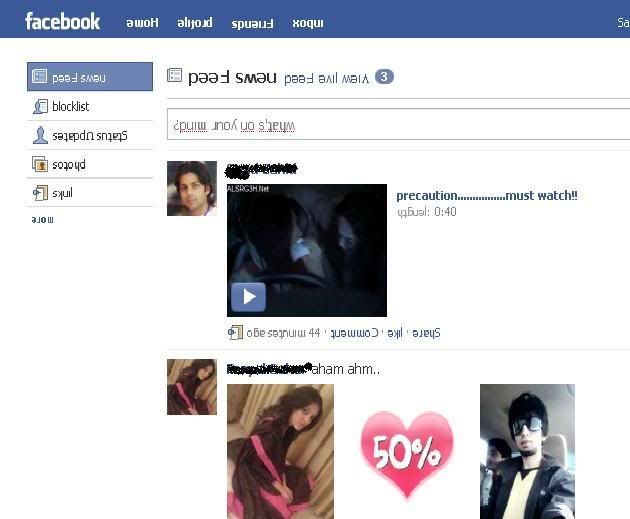
Upside Down Status!!! Same like Pirate one :)
Facebook also offers users the ability to transform their Facebook pages into upside down language that they like. If you scroll down to the lower left corner of your profile page, you’ll see your current language setting. Click on this, and you’ll have a list of all languages available to you. Notice the English(upside down)
Download Complete Photo Collections From Your Friends’ Profiles
If you have a lot of friends on Facebook, you may not have the time to keep up with all of the new family photos they’ve posted – but you are very interested in them and would love to have them stored in your own private photo collection to review later. Well, thanks to a very cool FireFox plug-in called FacePAD, you can do just that. The add-on is awesome, and I would recommend that anyone with the resources to do so should send in a contribution to Arthur Sabintsev for his efforts.
After you install the FacePad plug-in, make sure you select Tools->Add-Ons, and configure the options for FacePad so it has your correct Facebook language. Then, all you have to do is go to your friend’s photo albums, right-click on the title and select “Download Album With FacePAD.” That’s right, you’re not downloading a single picture – but an entire album.
Once you do, FacePad downloads every single image within that album into the download folder you’ve configured in FireFox. Don’t forget to organize all of those photos using JetPhoto.
Schedule Facebook Status Updates With Sendible
Do you like to keep your Facebook profile active, but you’re coming down with a cold and may be offline for a few days? Maybe you’re taking a trip and won’t be anywhere near a computer for a week. Or maybe you’ll be playing hooky from work and traveling, but you want your colleagues and boss to think you’re stuck at home sick. Accomplish any of these wishes by using Sendible to schedule your Facebook status updates. This is an application Daniel covered earlier, so check out his article for more details.
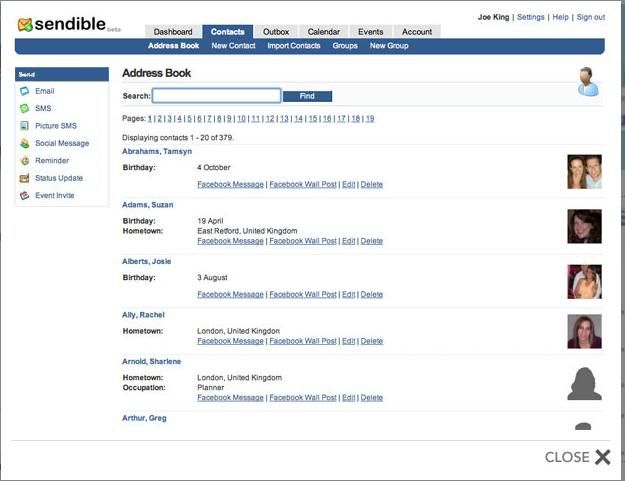
But for Facebook specifically, once you sign up with Sendible, just click on Facebook and provide your Facebook login details. Sendible connects directly with your Facebook account. The, under “New Messages” click on “Status Updates“.
On the next page you can schedule out as many updates as you’d like! This service is awesome – and you can distribute scheduled updates to a number of social networks including MySpace, Blogger, Twitter and more.
Hide Your Online Status From Certain People
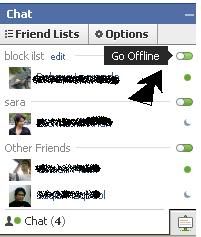
ll you have to do is open up your chat icon in the lower right corner of your Facebook display, click on Friend Lists, and create a new list called “BlockList.” Make sure after you create it that it’s configured under “Display these lists in Chat.”
Now, all you have to do is either click “edit” and add the friends you want to block, or if they’re already online, just click their name and drag them under this new list. Once you’ve got everyone there who you want to block from see your online status, hover your mouse over the green dot to the right and click on “Go Offline.” Now, you appear offline to only those certain friends.
Facebook, unlike MySpace, is not really easy to tweak – which is actually a good thing. Gone are the days of those horrid eye-bleeding pages with pink flashing backgrounds and instant music that you can’t turn off. However, the tweaks and plug-ins in the list above offer at least a few ways to customize your Facebook account and usage to suit your life and your personality..
Facebook Hack Codes And Tips To Show Off Your Skills


Facebook Tips
The following tips may help the most experienced Social Networker get a little more out of facebook
1. Added applications don’t have to sit on your profile
Contrary to what the default options for most applications would have you believe, adding and interacting with an application on Facebook DOESN’T automatically mean that it has to clutter up your profile. As well as getting an opportunity to restrict this at the “add new application” stage…
?
…you can also click “applications” in your left-hand menu at any time, and customize it from there too. Just click the little “edit settings” link next to each of the applications, and you’ll be able to further customize them –
you can change who sees them, where they appear, whether they’re allowed to send you e-mails and a few other bits and bobs. Perfect if you’re getting spam from an application in your e-mail – though if you’re being spammed by an app, you probably don’t need it that much!
2. You can change the way different people see your profile
When you add a new friend (or accept somebody who has requested to add you), you get the option of only showing them your limited profile. This is particularly useful if you’re adding somebody you’re not quite sure about, or adding a work colleague (for instance) who you don’t want to see your holiday snaps or the contents of your wall. If you’ve already added somebody but then decide you want to change their settings later, click on “privacy” in the top right corner and you can add people to your “limited profile” (or even “blocked” list) – plus you can click “edit setting” to edit what is actually included in your limited profile as well.
3. Your News Feed is fully customisable too
I often get frustrated because whatever controls my news feed (presumably an algorithm of some kind) has decided that I need to hear a lot more about a certain person – and when I do, I change my settings! You get to your mini-feed settings by clicking on “preferences” in the top right corner of the feed itself. As well as telling your feed to show you more or less about certain people, you can also use their snazzy slider bars to adjust how much your feed shows you about things like photos, status updates, notes, groups and the like.
4. Use friend lists to gather friends together in collections
I won’t spend too much time on the new “friend lists” feature, as I wrote quite a comprehensive post on it when it was released back in December; Needless to say they’re a very nifty way of “grouping” your friends in to lists, from which you can then communicate with them a lot more simply. Your friends will never see what lists you’ve added them to – so don’t worry if you add them to the group “People I don’t like much”, they’ll never know!
5. Most Facebook elements can be dragged and dropped
Because Facebook is built in a fancy, web 2.0 way (lots of Javascript and DHTML, or so I’m told) it’s a lot more customisable than you might at first imagine. Your profile for instance can be rearranged to your hearts content by dragging and dropping elements to change where they appear
As well as your profile, your left hand menu can also be customised. You can drag things between the top (always visible) menu and the bottom (which is only visible when you click “more”) – you can also drag applications in to this menu from your application list. This can be useful if, like me, you’re always playing on certain applications and want to be able to access them from anywhere.
6. Photo comments can be read an album at a time
One of the big things that helps me save time is being able to see all the photo comments in an album at the same time, without having to click through each of the pictures. It might not seem like a useful feature at first – after all, you usually want to see the photo that is being commented on don’t you? But if you find that people keep adding comments to the same album over and over (as they do in some of the family albums I’m tagged in!), you can save quite a bit of time by clicking “View Comments” at the bottom right-hand side of any album’s main page.
7. Don’t want to be a Zombie? Block the App!
If you’re getting annoyed with the same invitations to the same applications over and over (my personal bugbear at the moment is Texas Hold’em Poker!), you can block the application from sending you any more invites. It’s easy to do and saves you cluttering up your feed with hundreds of different invites to play the same thing – but it still lets you add the application if you change your mind later! All you need to do is click on the application’s name to go to it’s “about” page and then click the little “block application” button on the right hand side. Easy! You also get the chance to do this in your notifications list by clicking the X next to the application snippet, though this only removes the notifications from the list and won’t stop people inviting you still.
8. Poking people lets them to see your profile, and vice versa
Whilst most people think that “poking” is just a means of grabbing another user’s attention, it actually originated as a way for you to check out somebody else’s profile without having to add them as a friend first. For instance, if I was searching for a school friend and found several people with the same name, but their profile photo didn’t help, I could poke them all. They’d all then see that Henry Elliss had poked them, and with any luck one of them would recognise me and poke me back. We could then check each other’s profile for a week and have plenty of time to see if we really were the people we thought we were – so to speak. The same thing happens when you email someone who isn’t a friend – they can see your profile. Unless of course you’ve updated your privacy settings!
Clicking on “Edit Privacy” on the above pop-up takes you to a page that shows a list of people who you have poked in the past – and who can subsequently see your limited profile still! So be careful who you poke, and customise that limited profile too.
9. Make friends more easily with a Facebook badge
The Facebook Badgespage lets you create a neat little banner which you can use on a blog or other website to let people know you’re on Facebook.
Clicking on this banner will take users to your public profile – basically a version of what people find when they do a search for you within Facebook, and also the page that comes up if your Facebook page gets listed in a search engine result – don’t worry, it’s very limited as you can see with mine below!